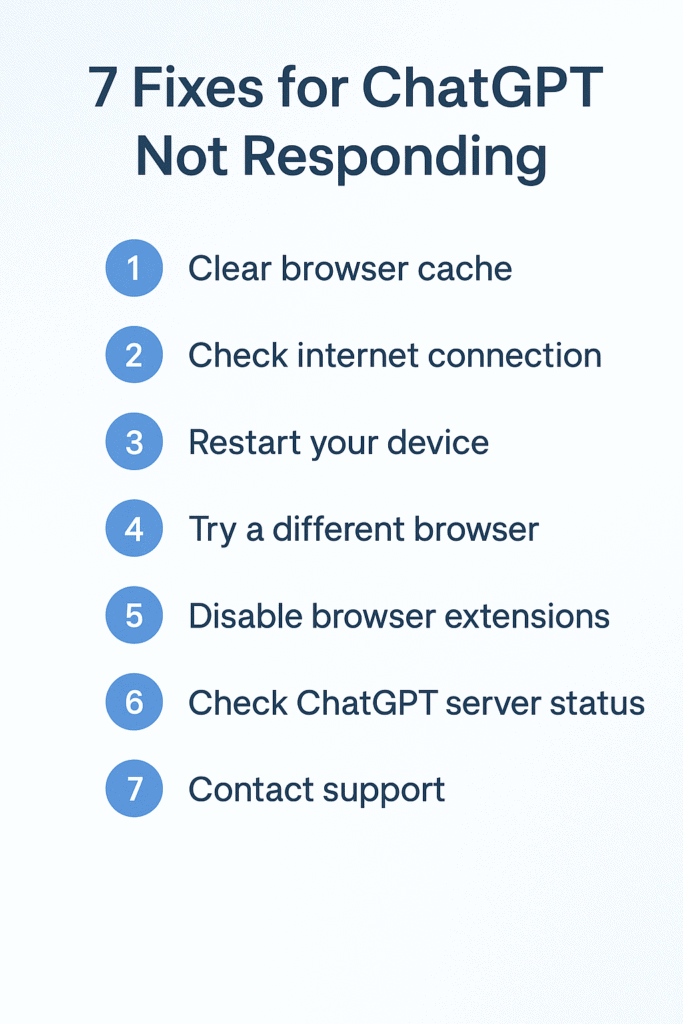
ChatGPT Not Responding? 7 Easy Fixes.
If ChatGPT suddenly stops responding, feels stuck at “Thinking…”, or keeps refreshing without answering, don’t worry—you’re not alone. This is one of the most common issues users face.
The good news? You can fix it in a few minutes.
In this guide, I’ll show you 7 simple fixes that actually work. Whether you’re using ChatGPT for work, study, or content creation, these solutions will help you get back on track fast.
Why ChatGPT Stops Responding
Before we fix it, here are the most common reasons why ChatGPT doesn’t reply:
- Temporary server overload at OpenAI
- Slow or unstable internet connection
- Browser cache or cookies problem
- Bad prompt formatting (long or unclear input)
- Third-party extensions blocking scripts
- Chat history overload
- Account issues or rate limits
Quick Fix Summary (if you’re in a hurry)
| Problem | Quick Fix |
|---|---|
| Model stuck at “Thinking…” | Refresh the tab |
| Nothing loads | Clear browser cache |
| Replies suddenly stop | Split prompt into smaller parts |
| “Network error” | Check internet + shorten answer |
| Model frozen on mobile | Reopen app |
Now let’s go step by step 👇
Fix 1: Refresh Your Chat Session
Sometimes ChatGPT gets stuck due to a temporary glitch.
What to do:
- Click Refresh (Ctrl + R)
- OR open a New Chat
- OR switch model (e.g. GPT-4 → GPT-4.1 → GPT-3.5)
💡 Tip: If ChatGPT freezes often, turn Chat History OFF temporarily under Settings → Data Controls. It reduces memory lag.
Fix 2: Clear Browser Cache & Cookies
Sometimes stored browser data blocks ChatGPT scripts from loading properly. Clearing cache can instantly fix chat freeze issues.
How to fix it (Chrome):
- Go to Settings
- Click Privacy and Security
- Select Clear browsing data
- Choose Cached images & files
- Click Clear data
- Restart browser
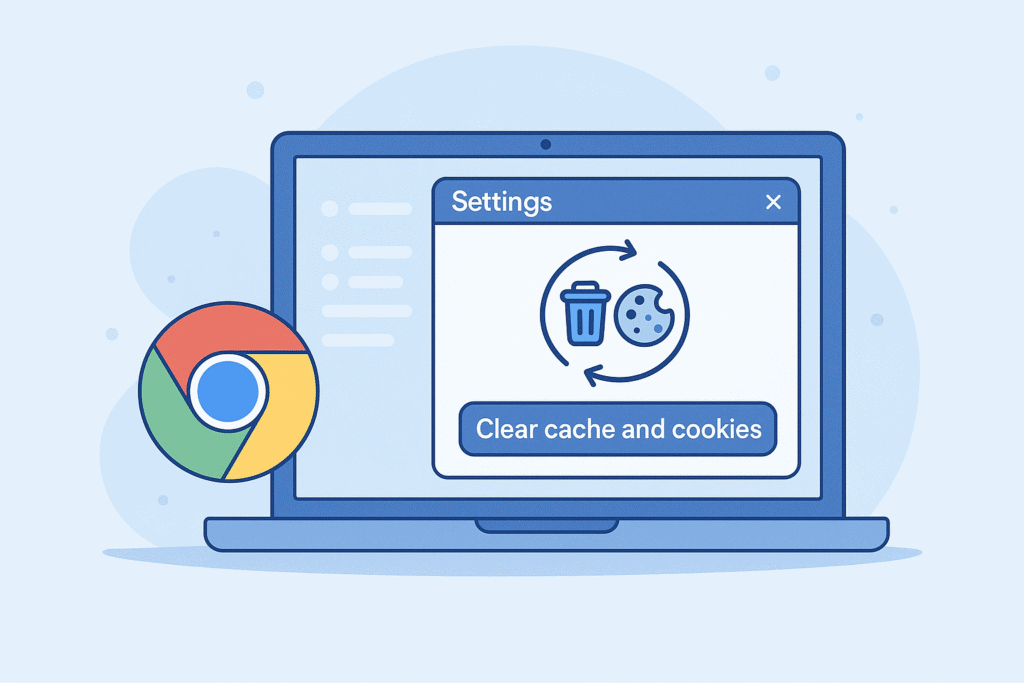
Works for: ChatGPT not loading, infinite thinking loop, blank screen issues.
Fix 3: Check Your Internet Stability
Even if your Wi-Fi is connected, low upload speed or micro-drop connection can cause ChatGPT to pause or stop replying.
Do this quick test:
- Open fast.com
- Run an internet speed test
If Upload Speed < 1 Mbps → switch WiFi or mobile hotspot.
💡 Tip: If you’re on mobile, switch from WiFi → 4G/5G or vice versa.
Fix 4: Reduce Long Prompts
If your prompt is too long or complex, ChatGPT may not respond. This is a processing limit issue, not a bug.
Bad prompt example:
Write me a full business plan including financial forecast, 10 marketing strategies, company values, vision, mission and step-by-step launch in one response.
Good prompt:
Step 1: Write company overview.
Step 2: Business model.
Step 3: Marketing strategy.
(One step at a time)
Solution: Break big prompts into smaller steps
Fix 5: Disable Browser Extensions
Ad blockers, grammar tools (like Grammarly), and script blockers can interfere with ChatGPT.
Try disabling these temporarily:
- AdBlock / uBlock Origin
- VPN browser plugins
- Grammarly browser plugin
- Brave Shields (if using Brave browser)
- Ghostery Privacy Shield
How to test fast:
Open Incognito Mode → Try ChatGPT there → If it works → Extension issue confirmed.
Fix 6: Switch Browser or Device
Sometimes the issue isn’t with ChatGPT—but with your browser.
Best Browsers for ChatGPT (ranked):
| Rank | Browser | Why |
|---|---|---|
| 1 | Google Chrome | Best compatibility |
| 2 | Microsoft Edge | Fast + stable |
| 3 | Brave | Good, but privacy blocks scripts sometimes |
| 4 | Firefox | Works but slower |
| 5 | Safari | Known issues with ChatGPT |
If ChatGPT is not responding:
- Try switching from Safari → Chrome
- Or move from mobile → desktop
Fix 7: Check OpenAI Server Status
Sometimes the problem is not on your side—Open AI servers may be down.
Sometimes the problem is not on your side—Open AI servers may be down.
- Visit: https://status.openai.com
- If you see yellow or red warnings → server issues.
Solution: Wait 10–20 minutes and try again.
Bonus Fixes (If Still Not Working)
If none of the above fixed the issue, try these power tricks:
- Clear ChatGPT conversation memory
Go to Settings → General → Clear Chat History
- Log out and log back in
Sometimes stuck session = re-login fixes it quickly
- Use a VPN
If your location is rate-limited, use a USA or UK VPN
- Enable cookies in browser
ChatGPT won’t work without cookies enabled
- Use Microsoft Copilot or Perplexity AI temporarily
Great backup AI tools if ChatGPT is down

Best Prompt to Restart ChatGPT
If ChatGPT freezes or replies with junk responses, reset it with a fresh instruction:
Ignore previous context. Start fresh. You are ChatGPT, a helpful AI assistant. Confirm with “Ready” and wait for my next message.
Expert Tips to Prevent ChatGPT from Freezing
Use these optimization tricks to avoid this issue in the future:
- Use clear prompts – ChatGPT responds faster
- Keep chats short – Start new chats after every big topic
- Avoid giant paragraphs – Use bullet points
- Stay logged in – Sessions expire after long idle time
- Limit tabs – Too many tabs slow memory
Best Prompt Structure (Copy & Use)
Want ChatGPT to respond faster and better next time? Use this optimized structure:
Role: You are an expert in .
Task: Help me with .
Context: <Explain what you’re working on>
Output Style: <list, table, bullet points> .
Length: <short/medium/detailed>.
Example (optional): <Add sample if needed>
Example:
“You are an expert marketing consultant. Help me write a short product description for a smartwatch. Use bullet points and a friendly tone. Keep it under 80 words.”
This reduces processing strain and prevents freezing.
When ChatGPT Stops in the Middle of a Reply
If ChatGPT stops halfway, just type:
“Continue”
“Go on”
“Finish the last point”
“Continue from where you stopped” or
“Continue but give shorter answers”
This works 99% of the time
When It’s Definitely NOT Your Fault
If you see these errors, it’s not on your side:
“Internal server error”
“There was an error generating a response”
“Network error”
“Something went wrong”
Solution: Switch model to GPT-4.1 or GPT-3.5, then continue.
ChatGPT Still Not Responding? Try These Alternatives
If you urgently need AI help but ChatGPT isn’t working, here are fast backup tools:
| Tool | Use Case | Link |
|---|---|---|
| Perplexity AI | Research + fast answers | perplexity.ai |
| Microsoft Copilot | Writing + coding | copilot.microsoft.com |
| Claude AI | Long articles + thinking | claude.ai |
| Gemini | Google-powered answers | gemini.google.com |
Tip: Always keep at least one backup AI ready so you never get stuck.
FAQs – ChatGPT Not Responding (Quick Answers)
1. Why is ChatGPT not responding?
Usually due to browser issues, long prompts, internet connection, or OpenAI server overload.
2. Is ChatGPT down right now?
Check OpenAI status page: https://status.openai.com
3. How do I reset ChatGPT?
Open New Chat and send: Start fresh. Ignore previous conversation.
4. Why does ChatGPT freeze?
Too many chat messages or long prompts overload memory. Clear history or use smaller prompts.
5. ChatGPT gives random answers. How to fix?
Give clear instructions: role + task + format.
Final Thoughts
When ChatGPT stops responding, it’s frustrating—especially when you’re working on something important. But in most cases, the problem is quick and easy to fix using the simple steps in this guide.
- Start with a page refresh
- Then clear browser cache
- Then check prompt length or switch browser
- Use backups if urgent
If you still face issues after trying everything, it may be a temporary OpenAI server issue, so just wait 10–20 minutes and try again.
Before You Go (Bonus Prompt)
If ChatGPT still feels slow or lazy, use this reactivation prompt:
You are an advanced AI assistant. Respond clearly, step by step. Do not apologize. Do not repeat. Provide useful answers.
Try it once—and you’ll see the difference